

Webflow offers three approaches to showing events on your site: its own CMS Collections, the Google Calendar iframe embed, and a branded widget via Revisual. This guide covers all three – what each one involves, what it costs in time and plan level, and which is right for your situation.
If you manage events in Google Calendar and your website is built on Webflow, getting those events onto your site without duplicating work is a reasonable goal. The answer most people reach first – copy the iframe embed code from Google Calendar, paste it into a Webflow Embed element – works, but with conditions worth knowing before you start.
There are three distinct approaches to displaying events on a Webflow site. They suit different situations. This guide covers all three honestly.

The plan requirement you need to know first
Custom code in Webflow – including the Google Calendar iframe and the Revisual widget – requires a paid plan. The free Starter plan does not support custom code in Embed elements or in page head settings. Both Options 2 and 3 below require Basic or above.
The exception is Webflow CMS Collections, covered in Option 1. Building an events display using Webflow CMS requires no custom code and works on the Starter plan – but it comes with significant setup work and no Google Calendar connection. If you are on the Starter plan and want to embed Google Calendar, upgrading to Basic is necessary.
Option 1: Webflow CMS Collections
Webflow’s CMS lets you build a fully custom events display without any external tools or code. You define a Collection with fields for event name, start and end dates, location, description, image, and RSVP link. Events are individual CMS items. A Collection List element on the page displays them in whatever layout you design in the Webflow Designer.

The display is entirely yours – styled with your own components, connected to your design system, with individual URLs for each event. For a Webflow developer building a client site where design control is the priority and event volume is low, this is the right approach.
Why the CMS approach is more work than it first appears
Setting up the Collection requires creating the schema, building the Collection List layout in the Designer, wiring each field to its element in the component hierarchy, styling the cards, and configuring pagination. This is not a quick job – it assumes familiarity with the Webflow Designer and the CMS.
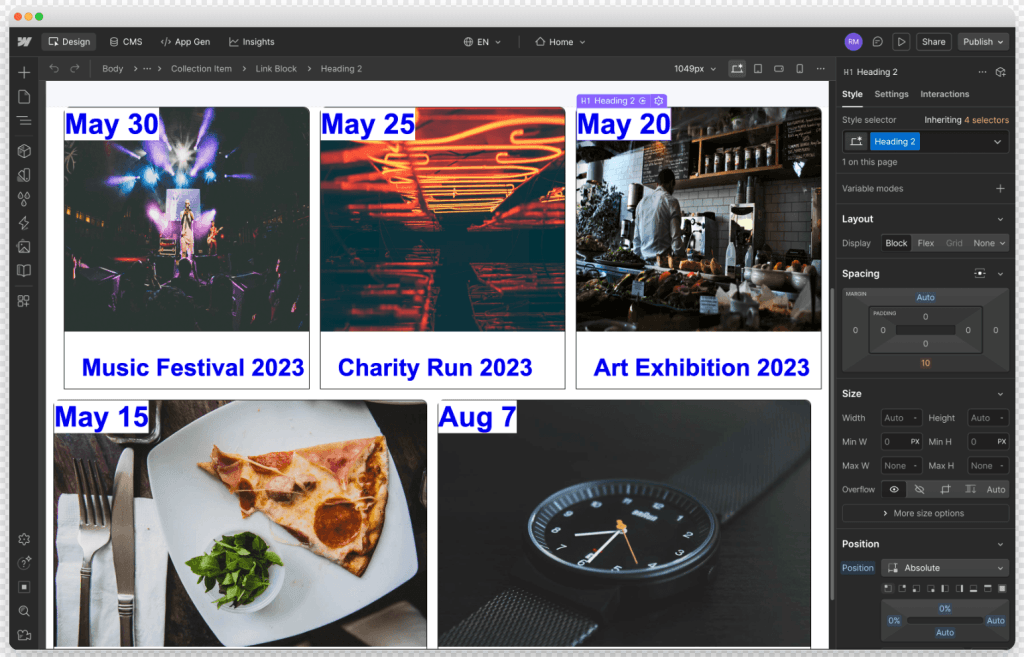
The bigger limitation is ongoing. Every event must be created and updated manually inside Webflow CMS. If your team already manages events in Google Calendar, this means maintaining two separate systems in parallel. When a date changes, the Google Calendar update and the Webflow CMS update are two separate tasks. There is no native connection between them.

Recurring events are not supported. Each occurrence is a separate CMS item. For organisations running weekly or monthly events, the accumulation of manual work compounds quickly.
Right for: Webflow developers building a site where full design control is required, event volume is low, and the client manages events in Webflow. Not right for: organisations that manage events in Google Calendar and want the website to reflect those changes without additional work.
Option 2: The Google Calendar iframe embed
Google Calendar provides a native embed code that you paste into a Webflow Embed element. The calendar updates automatically when events change in Google Calendar. This requires a paid Webflow plan.
Step 1: Make your calendar public
Open Google Calendar and click the settings gear. Under ‘Settings for my calendars’, select the calendar you want to embed. Find ‘Access permissions for events’ and tick ‘Make available to public’. If your main calendar contains private appointments, create a dedicated public calendar for events first.

Step 2: Get the embed code
In the same settings, scroll to ‘Integrate calendar’. Copy the iframe embed code. Click ‘Customise’ to adjust the default view and background colour before copying if needed.
Step 3: Add an Embed element in Webflow
In the Webflow Designer, add an Embed element where you want the calendar to appear. Open the Code Embed Editor, paste the Google Calendar iframe code, and save. The calendar will not display in the Designer preview unless you enable the custom code toggle in the top bar – more on that in Step 4 of the Revisual setup below. Publish the page to make the calendar visible to visitors.

What you get
A functional, automatically-updating calendar embedded directly in your page. Visitors can navigate between months and click events for details. The visual presentation is Google’s fixed interface – the colour scheme, font, and layout cannot be overridden. On a Webflow site with a considered design system, the mismatch is hard to ignore.
Right for: teams that need a working calendar quickly and visual consistency with the site is not a requirement. Not right for: organisations where the events page is a public-facing part of the site’s identity.
Option 3: A branded Google Calendar widget with Revisual
Revisual connects to your Google Calendar and displays events in a widget that matches your site – your colours, your fonts, your card layout. Events update automatically when the calendar changes. Like the iframe method, this requires a paid Webflow plan.
The setup uses two steps: a JavaScript loader script in the page head, and a widget snippet in a Webflow Embed element.

Step 1: Configure your widget in Revisual
In the Revisual dashboard, connect your Google Calendar and configure the widget – layout, colours, fonts, number of events to show. In the install wizard, copy the loader script and the widget div snippet separately.
Step 2: Add the loader script to the page head
In the Webflow Designer, open the Pages panel and click the settings icon next to the page where the calendar will appear. In the Custom Code section, paste the Revisual loader script into the ‘Inside <head> tag’ field and save.

To load Revisual on every page of your site, add the loader script in Site Settings → Custom Code → Head Code instead. For a single events page, page-level is sufficient.
Step 3: Add the widget snippet via an Embed element
Add an Embed element to the page. Open the Code Embed Editor, paste the Revisual widget div snippet, and save.

Step 4: Enable custom code preview
To see the widget in the Designer, enable the ‘Enable custom code?’ toggle in the top bar. This toggle affects your view only – it does not change what visitors see. To publish the calendar for all visitors, use the Publish button as normal.
If the widget does not appear after enabling the toggle, check that the loader script is saved in page head settings and that the site has been published at least once since the code was added.
What Revisual adds beyond the iframe
- Branded presentation – your colours, fonts, and card layout rather than Google’s fixed interface
- Event structured data – Revisual injects Event schema markup into the page, making events eligible for rich results in Google Search
- Multi-channel distribution – the same calendar feeds email campaigns, QR codes, and hosted event pages, all in sync automatically
- Filtering and multiple views – list, grid, or card layouts with optional category filtering
Right for: organisations where the Webflow events page is part of the site’s public-facing identity, where events are managed in Google Calendar, or where email and QR distribution are also needed.
A note on other third-party embed tools
Elfsight and SociableKIT also offer Google Calendar embeds for Webflow via the Embed element, on the same plan requirement. They are worth considering if you need a basic free-tier display and do not need multi-channel distribution. For organisations that also need branded email campaigns, QR codes, or hosted event pages staying in sync from one Google Calendar source, Revisual is the better fit.
Which option is right for your organisation
Two questions settle it.
First: do you already manage events in Google Calendar? If yes, the Webflow CMS approach creates a second system to maintain indefinitely. The iframe or Revisual keeps Google Calendar as the single source of truth.
Second: does the visual presentation of your events page matter to your audience? If the page is part of your site’s identity, the iframe will feel out of place. Revisual gives you full visual control without changing how events are managed.
If you are on the Webflow Starter plan, CMS Collections is the only option without upgrading. Both the iframe and Revisual require Basic or above.
| Webflow CMS Collections |
Google Calendar iframe embed |
Revisual widget | |
|---|---|---|---|
| Plan required | Starter (free) or above | Basic or above | Basic or above |
| Google Calendar sync | No — manual only | Yes — automatic | Yes — automatic |
| Visual customisation | Full — Designer | None | Full — branded |
| Setup complexity | High | Low | Medium |
| Recurring events | No — each manual | Yes | Yes |
| SEO structured data | Partial | No | Yes — Event schema |
| Multi-channel distribution | No | No | Yes |
| Best for | Webflow devs needing full design control, low event volume | Quick functional embed, no brand requirement | Google Calendar users, branded display, multi-channel |
Coming to the Webflow Marketplace
A dedicated Revisual app for the Webflow Marketplace is in development. When it launches, installation will be a single step – no manual script or Embed element setup required. Until then, the two-step method above works on any paid Webflow plan.
Frequently Asked Questions
Not with a direct embed. The Google Calendar iframe and third-party widgets like Revisual require a paid Webflow plan – the Starter plan does not support custom code in Embed elements. The only free option is Webflow CMS Collections, which displays events you create manually in Webflow. It has no connection to Google Calendar.
Two things to check. First, your plan – custom code requires Basic or above. On the Starter plan, Embed elements will not render. Second, if you are in the Webflow Designer and the calendar is not visible, enable the ‘Enable custom code?’ toggle in the top bar. This is required to preview custom code in the Designer. The calendar renders correctly on the published site regardless.
Yes, for the iframe and Revisual methods. Changes in Google Calendar – new events, updated details, cancellations – appear on your Webflow site without any action in Webflow. CMS Collections do not sync with Google Calendar – every change must be made manually in Webflow.
Not with the native iframe. Google Calendar’s fixed visual style cannot be overridden through Webflow. Revisual solves this – it reads from your Google Calendar and renders events in a fully configurable widget styled to match your site, without changing how your team manages events.
Only if maintaining two separate systems is acceptable. Webflow CMS has no native connection to Google Calendar – every event must be created and updated in Webflow manually. For a small number of infrequent events this can work. For organisations running regular event programmes, the ongoing duplication is the wrong trade-off. The iframe or Revisual keeps Google Calendar as the only system that needs updating.
Basic or above. The Starter plan does not support custom code in Embed elements, which is required for both the Google Calendar iframe and the Revisual embed. Webflow CMS Collections work on the free Starter plan but have no Google Calendar integration.

About the author
Piotr Pozniak
Piotr’s is the cofounder of Revisual, a dedicated tool for seamlessly sharing events. With over six years of experience developing the platform, he brings extensive expertise in streamlining business processes through technology solutions. Work with partners across industries has honed his ability to optimize event workflows and enhance data accessibility.

